SeaNav Demo
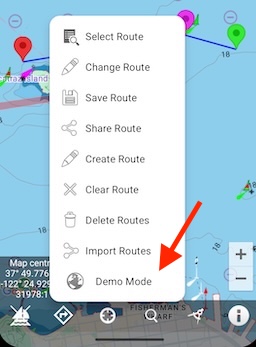
Experience all SeaNav's navigation features at home. Select Demo route in the route menu.
You can also tap the ... button on the top right of this screen to view the guide in the browser and then share it to your desktop or print it out.
Useful to have open to read on your laptop or other device at the same time as running this demo on your device.
N.B. To restart the demo route at the beginning just tap the Demo route icon again and it will position the demo route back at the beginning again.
Your initial position is shown by a blue dot and you are stationary.
Zoom in by tapping the + button bottom right or out by tapping the - button (or by pinching on the screen). Pan the chart with your finger.

Tap the Sailboat icon bottom left to start sailing the demo route and for the first minute just sit back and observe. Your position will change to show on the chart as a boat icon with a heading and speed vector. The vector shows where you will be in 2 minutes time. Check the Head Up Display (HUD) at the top of the screen to see details on your Next waypoint, your course over ground (COG), speed over ground (SOG), Vector Made Good (VMG), Estimated Time of Arrival (ETA), Distance and bearing to next Waypoint and current Latitude and Longitude. Keep sailing for 40s or so. An audible alarm will sound as you reach the first waypoint and routing automatically moves onto the next waypoint. After about another 20s or so the demo then changes the ships course to track to the next waypoint.
Live AIS ship data will also be shown on the chart and potential collision targets will flash if any are detected. Don't worry, although these are real boats in real time, they will not be aware of your demo boat.
N.B. When not in demo mode you need the SeaNav AIS add-on or Boat Beacon - AIS Marine Navigation installed to see the AIS ship data in SeaNav.
 Ruler
Ruler
Try using the ruler to measure distances and bearings between points on the map. Drag and drop the green and red pins to select the end points. A long hold on a pin will make it draggable. Zoom in if it proves difficult to select one of the end pins.
 My location and compass
Experiment with toggling between centring on your current position or showing the compass display. Tap once to lock the center of the map to your current location - dragging the map in this mode turns it off too (but not when compass is showing). Tapping the button again will show a compass rose, and pressing again will clear the location lock. See Compass mode in Settings for selecting Bearing, Course up or North up compass display.
 Info and settings
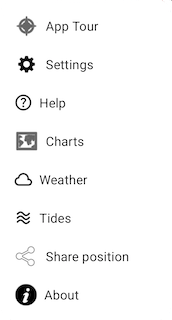
Now try out some of the optional settings.
Tap Charts and then Manage Chart Layers
You can choose what information to show on the map; Buoys, Lights, Depth contours, Depth soundings, Wrecks, Rocks, Anchorage areas, NOAA Weather Buoys, Traffic Separation zones etc. Turn off layers to de-clutter the display and only show what is important at the time. You can set the maximum depth to display details at in Advanced Settings - Max Display Depth :- 20m, 50m or All.
N.B. To see individual Depth soundings and Sea bed area types you need to zoom in to 1:20,000 or better.
 Settings
Tap Settings and then scroll down to Satellite Maps
Select it and then go back to the chart view. By default, Depth areas are not shown in satellite mode to allow satellite image details to be seen. Depth contours are displayed instead. Depth Overlays are automatically defaulted to show when back in Normal mode.
Compass mode - scroll down a bit further in settings to Heading up display
When the compass is on the map display will rotate with either your bearing (i.e. the direction you are pointing your device), your course or be locked to showing North up. Course up means the map will orient in line with your boats course over ground.
Learning more and getting Help
There are lots of more great features in the app to try out. Read our in-app User Guide or browse it on-line : User Guide.
N.B. Demo mode can also be used to try out SeaNav's Pebble smartwatch support if you have one and our Simrad, Lowrance and B&G GoFree support.
How do I contact you with Suggestions and Questions?
We're always happy to hear your ideas on how we should improve our products - please send an email to seanav@pocketmariner.com.
Anything Else?
Pocket Mariner have other great apps for iPhone and Android- if you're a fan of SeaNav you are sure to enjoy apps like
Boat Beacon which provides real time Marine AIS ship position receive and transmit and Compass Eye the first fully Gimballed Bearing compass with zoom and overlaid gps information.
And finally, you may like to know that Pocket Mariner can develop mobile applications for your company - if you have a project you'd like to discuss, please email us at business@pocketmariner.com