SeaNav User Guide
SeaNav is a marine navigation app developed by Pocket Mariner for iOS and Android devices. It provides real-time interactive marine charts, live AIS ship tracking, weather and tide forecasts, route planning, and offline chart storage for use without mobile coverage.
Using SeaNav
SeaNav lets you plan and navigate your
trips in real time with the latest high resolution interactive Marine charts.
Charts are stored in the app so you can use them to help navigate
even when out of mobile coverage. With SeaNav you can keep a watch on boats near you and let others keep a watch on you via our Global real time AIS system (Demo mode or IAP required).
Weather and tide forecasts are available too
SeaNav is a powerful application
with a lot of exciting and useful features.
As well as this user guide we have provided a built in demo mode which we hope will help bring you up to speed on using them.
Help Index
Using
Demo mode
Marine Charts
AIS Ships
Toolbar buttons
Managing Charts
Weather and tides
Routes
Favourite Places (POIs)
Info and settings
Settings
Boat and trip details
Alarms
License, Privacy and Notices
Demo Mode
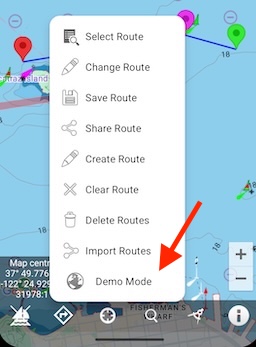
Demo Mode lets you try out all of SeaNav's navigation
features including charts, AIS, Weather and tides for free before you put to sea. Select Demo mode from the bottom of the routes popup menu to position you at sea
ready to navigate a route and try out the features below. There
are instructions in the app (tap the Demo Guide item) and also
on the web at
Demo Help.
It may be helpful to read this page on your laptop or other device at
the same time as running the demo on your device.
Demo routes are tailored to your locale: for US & CA it's San Francisco Bay, for the UK/IE & most of the EU the Solent,
Germany Lubecker Bucht and France the Mediterranean.
Marine Charts
SeaNav's marine charts are seamless and fully interactive. Tap anywhere on the map to get information about what is on
the chart; buoys, lights, pontoons, ships etc,. Long press on the chart to check the depth, add a POI, new route or create an immediate Sail to route.You can try out sample charts with the demo mode
Marine charts are available for most countries including the US, Canada, UK & Ireland, Germany, France and many more via in app purchase. Tap the Chart store button in settings to learn more.
Outlines of charts that are available to purchase are shown in blue on the map. They outline in red when purchased and
green when downloaded and cached in the App. See Manage charts below for more details on Chart Sets
and our chart update service.
AIS Ships — See and Be Seen
PocketMariner's AIS system provides world-leading real-time global coverage with over 100,000 ships visible at any moment. Ships are colour-coded by type: sailing boats are white, pleasure craft are magenta. See the Map Legend for full details. A vector arrow shows where each boat will be in 2 minutes based on its current speed and course. Ships move in real time across the chart.
Viewing ship details
Tap any ship to see its information including past track. Tap the (i) button for full details: speed, course, CPA, distance, bearing and more. Ships flash on the map if you are on a potential collision course with them.
Sharing your position via AIS
With an MMSI set in My Boat Details and "On My Boat" enabled, your boat appears on global internet AIS systems like MarineTraffic, ShipFinder and VesselTracker. Your position continues to be shared in the background when the app is closed.
Getting an MMSI
If you don't have an MMSI, you can normally get one for free. In the US, visit the USCG approved agent BoatUS and use their online form. In the UK visit Ofcom, or we can provide a free internet-only MMSI — email help@pocketmariner.com.
If you already have Boat Beacon, AIS comes free in SeaNav, otherwise it requires an In-App Purchase.

The main tools are at the bottom of the screen. Here is what they do:-
 On my Boat
Tap this to set whether you are navigating or not. When on (white boat icon), your position will show on the maps as a
boat icon with heading , course (COG) and speed (SOG) showing at the top of the screen (HUD). If you have a route selected waypoint and route information like Vector Made Good (VMG), Estimated Time of Arrival (ETA), distance, bearing and Cross track error will be added to the HUD. Route tracking, Collision detection, alarms and location sharing will all be active (if enabled in settings). Route tracking, Collision detection, alarms and location sharing will continue to run in the background when the app is closed if this is on.
An audible alarm will sound as you reach a waypoint and routing automatically moves onto the next waypoint.
On reaching your final waypoint a summary of the trip details is shown with distance covered, time taken etc. Route tracking and waypoint monitoring will continue to run in the background when the app is closed. You can interrupt and resume a route exactly where you left off at any time by toggling the Sailboat icon. You can skip to the next or previous Waypoint using the back and forward arrows in the extended HUD (tap on the down arrow to expand it). You can also reverse the route to go back home by tapping the double arrow symbol in the extended HUD
 Off my Boat
When not set (boat with cross), your position shows as a blue dot and is only visible to you. Location sharing will
be disabled and the app will not run in the background when you close it (e.g. collision detection and alarms will not be active in background and no battery power will be used).
If you have a valid MMSI set for your boat and Onboard is set on, you will also appear on internet based AIS systems
like Marine Traffic and ShipFinder. When Onboard is on, SeaNav will continue to send your GPS position when the app is closed and the screen is off.
N.B. GPS uses a lot of battery. SeaNav will run for up to 5 hours on a full charge. If running on battery only, battery
status reminders will be sent when the battery gets low.
Boat positions and details are refreshed automatically every minute and 3 seconds immediately after any change in map
zoom or position.

(Landscape mode) You can share your position with your friends instantly via Email, X, Facebook etc. They will also be
able to follow your progress if you have transmit turned on.This is available in landscape mode. In portrait mode you can use the i button to share your position.
 Routes
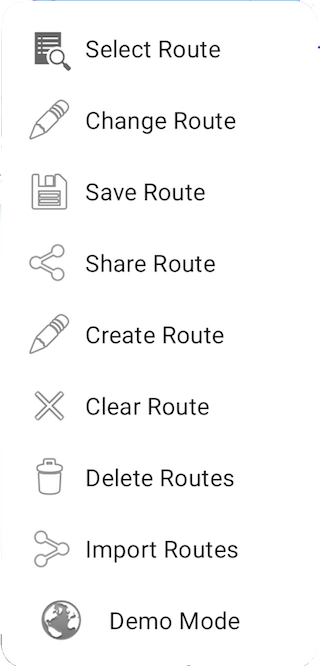
Create, edit and manage routes for navigation. You can share routes with friends and other devices via email (GPX format) and import routes from GPS files such as those exported from Raymarine MFDs.
Creating a route
Routes are built from a series of waypoints. Tap and hold on the chart to place waypoints. In Route Edit mode, long-press a waypoint to drag it to a new position, or tap it to delete it. Give the route a name when you save it.
See also: how to create and edit a route.
Navigating a route
Select a route and tap the sailboat icon to begin navigating. SeaNav automatically selects the nearest waypoint as your starting point. Use the extended Sailing HUD (tap the down arrow at the top of the screen) to skip forward or backward to any waypoint, or tap the double-arrow symbol to reverse the route and head back home. You can interrupt and resume the route at any time.
Sharing routes
Tap the share button to email your route as a GPX file. This can be viewed in Google Earth, other SeaNav devices, and many other apps and MFDs. If you receive a GPX file by email, tap it to open it directly in SeaNav.
See also: exporting and importing routes via email and setting up club race courses.
Points of interest (POIs)
 My location and compass
Tap to re-centre the map on your current location. The icon will go blue.
Tap again to turn compass mode on with North up or Course up depending on your preference in settings.
The icon will go purple and the centre of the map will track your location.
By default the compass and map display are set to North up. Use the Heading up setting if you want the compass
and map to rotate with device direction to give course up or sight boats.
You can zoom the map using the pinch gesture and pan it by dragging with your finger.
Tap again to turn compass mode off.
You can tilt the map to show a 3D perspective with an upwards two finger drag. To return to flat mode
then do a two finger downward drag
The accuracy of digital compass headings can be affected by magnetic or other environmental interference.
The compass will need to be calibrated from time to time. Calibrate the compass (e.g. if the readings appear wrong) by moving the device in a circular
figure of 8 motion."
 Compass
A compass rose shows the direction your device is pointing and the map is rotated accordingly.
It also displays the range in NM from your position to the compass ring under the heading reading.
Useful for looking in the right direction to spot boats that appear on the map from your own boat or position
and check their bearing and distance.
You can lock the Compass Rose to North up ( turn off Heading up display) if you want the compass overlay and GPS info
but don't want the map to rotate.
When compass is off, the map aligns to True North up.
 Search
Search for boats by name, MMSI or BBSI and search for a port or place by name. Near option limits the search to
your map region. Clicking on a boat or place when it is found takes you to its position on the map and highlights it.
If searching for a boat by its Boat Beacon ID (BBSI) then you need to enter the full number including the BB at
the beginning.
You can also search for Places by name - add more address info, like State or Country to get better results -
e.g 'Portsmouth, US'.
 Ruler
Ruler
Use the ruler to find or plot the distance and bearing between points on the map. Tap and hold down and drag the
end points to where you want to measure. To get the reciprocal bearing, tap the 'reverse'
button at the bottom left. Tap the X on the right when you are done.
 Man Overboard (MOB)
Tap the lifebuoy symbol top right to set and track the location of a Man Overboard or another object (e.g. a buoy, POI).
SeaNav will constantly monitor the bearing and distance plus the time in the water displaying a heading line to the MOB
last known position.
MOB continues to run in the background.
The bottom left sailing button icon changes to a lifebuoy symbol to remind you that it is active.
Tap this to clear the MOB and revert to sailing mode.
 Anchor Watch
Anchor Watch monitors your boat's position and raises an alarm if you drag anchor. Tap the anchor icon (top left) to set your anchor position and guard radius.
Alarm conditions
An alarm sounds if your boat moves more than 50m from the anchor position or faster than 1 knot (see Anchor radius in "My Boat Details" to adjust the guard and offset distances). If you have an email address set, SeaNav also sends an email with a map showing the anchor and current boat positions. The alarm repeats every 5 minutes while the boat is outside the guard zone. Anchor Watch continues running in the background when the screen is off.
Anchor offset
For more accurate anchor position tracking, set an Offset Anchor in "My Boat Details". SeaNav will estimate the true anchor position relative to your current position — tap the anchor icon after your boat has drifted back to its maximum distance from the anchor and is pointing towards it.
The bottom left sailing button shows an anchor symbol while Anchor Watch is active. Tap it to raise the anchor and return to sailing mode. MOB can still be activated during Anchor Watch and takes precedence.
MOB and Anchor Watch come with a free 3-day trial and a yearly subscription covering both. There is no charge if you cancel before the trial ends.
 Tidal Stream
Where available a Tidal diamond symbol is rotated to point in the flow direction.
Blue means the rate is decreasing, red and it's increasing. The diamonds update in real time on the chart.
For planning tap on a tidal diamond to see the rate and direction, tap i for more information and see
the rate and direction for the next 3 days on a graph at the bottom of the screen. Slide the time cursor
( or just tap at the time you want ) and all the tidal diamonds in view on the chart update as you adjust it (not just
the one you have selected). You can zoom in and out of the graph timeline using pinch gestures. The Tidal Stream information
is cached for up to 7 days so will work when you are out of coverage as well. See Tidal Streams for more information.
Managing Charts
Charts are automatically downloaded and
stored as you pan and browse the map view. You can zoom out on the map to see which charts
have been installed and select new charts to download
including all charts for the current view (up to 60 at a time). You can store the charts
for the whole of the UK or several US States. They can then be used
offline even when you have no mobile or internet coverage.
Already downloaded and installed charts are
outlined in green. A solid outline shows the currently selected
chart. Red outlines are charts that haven't been downloaded. Tap
a chart area to select it.
You can choose what layers are displayed in the chart to help de-clutter the display. Turn soundings or contours on and off, turn on Military Practice areas etc.
Chart updates
We provide regular updates to the charts with the latest data we
receive from the various Hydrographic offices. These includes
corrections, changes and often new charts. You will see an alert when
updates are available for your charts. Typically these updates come at
least 4 times a year, in the Spring, Summer, Fall and Winter.
A NOAA Paper chart overlay is available for the US. This is a one time purchase but to continue using the paper chart style
you will need to
maintain your US Chart subscription.
The Chart store lists all the
chart sets that you have, their subscription expiry dates and Chart Sets for other areas and countries
that are available via In App Purchase.
Wind, waves and tides
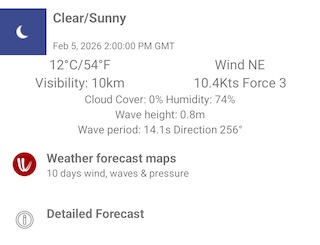
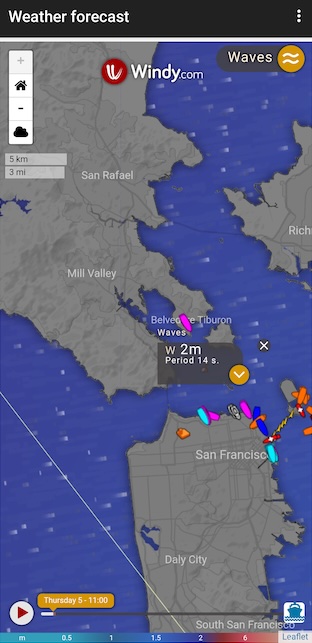
Tap on the info (i) button to get the current local Weather including wind and waves. An animated weather forecast overlay (Weather forecast maps ) for your location including wind and waves
is available and a link to online weather services e.g. NOAA , UK Met office etc. (Detailed forecast).
Tides
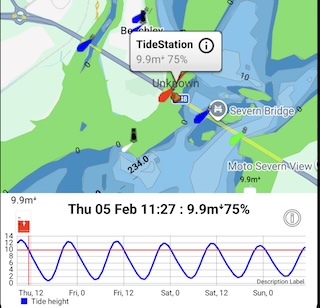
Tides and tidal streams including future predictions are also available where we have coverage. Tapping on their icons onthe chart shows a graph with the next 3 days tides or tidal streams.
You can also get the local tide information by tapping the i button and selecting tides. This can also show tide predictions weeks and months ahead.
A current chart subscription is required for tide information.
 Info and settings
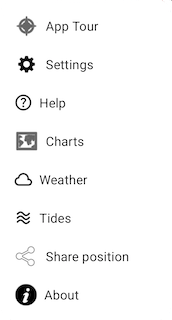
App Tour: review the buttons with the on screen intro guide
Settings: see below for all the settings available like My Boat Details, Compass mode etc.
Help: this user guide, the ship legend, FAQ and email help
Charts: Manage what chart layers are displaying & get marine charts.
Weather: Weather now & in the future
Tides: Nearby tides & forecasts. Sunrise & sunset times, moon phase & times
Share: Share you current position with others
About: Info about the App & connectivity
 Settings
- My Boat Details
Enter your Boat details ito provide more information - e.g. its name, MMSI, length, etc. and email address for alarms.
When "On My Boat" is set SeaNav will share your current position, status and ship details for other Pocket Mariner App users to view,
e.g. using BoatWatch and Boat Beacon as well as on SeaNav. If you have an MMSI number set then your boat will also be visible on
global internet AIS systems like Marine Traffic, ShipFinder and VesselTracker etc. Your position will also continue to be shared when
the app is closed (background)
If you don't have an MMSI for your boat you can normally get one for free. In the US you can obtain one in a couple of minutes by visiting the USCG approved agent BoatUS and using their online form. In the UK visit Ofcom
or we can provide a free internet only MMSI number - Internet MMSI request.
CPA Distance and time: Set the maximum distance at which a near collision is alerted and the maximum time to a collision. e.g. Alert if another vessel will be within 200 meters in the next 10 minutes
Waypoint distance: Proximity distance for waypoint reached.
Waypoint skipping:
N.B. AIS uses a restricted character set for Boat name, Destination and Group - only Capital Letters, Numbers, Space and the following punctuation @[\]^_!$%&()*+-,#.:;?'<=>" are allowed.
- My Trip Details
Enter details about your status, destination, number of people on board, ETA, Group name (see below).
Status, Destination and ETA will be shared via AIS if you are transmitting your location.
Groups, Flotillas, Races and Fleets:-
Groups let you highlight all the other boats in the same group with a flag so you can easily see, follow and chat with them. You can send a message to everyone in the group using the group name. Folks back at base can also watch the Group in real time on Boat Beacon's Group web pages.
Joining or creating a group is easy, just enter its name under Trip Details. You can use any name you like, a bit like a hashtag. If you want to give it a try, join the BOATBEACON group. You can also view the boats in the BOATBEACON group on the web here. To remove yourself from a group just delete the name in Trip Details.
We have advanced group management tools available for Race and Flotilla leaders and officials, please contact us at fleets@pocketmariner.com
- Display and Chart
Manage Map Layers:
Show my Track: Logs your path on the map. Will continue to update in the background if transmit and/or collision detection is also enabled.
Satellite Maps: Choose whether to show the Satellite overlay on the map. Useful for spotting where the real coastline is!
Automatically shows contour lines instead of depth area colours.
Range circles: Show concentric range circles around your location
Show Grid: Show the latitude and longitude grid.
Hide Boat names: De-clutter the map display by not showing boat names unless tapped.
Zoom buttons: Show + and - buttons on bottom right of map to enable easy zooming in and out around your postion without panning.
Imperial units: Display distances/measurements in feet instead of meters.
BoatSymbol size: Change the size of the boat icons on the map
Heading up display: When compass mode is on, choose whether to rotate the display with the compass or fix it at North up.
Collision and SART Alarms: Potential collision targets (closest point of approach; 200m within the next 5 minutes) will flash on the map and a Big Ship's Horn will sound.
SART (Safety and Rescue Transponder) beacons will also be detected.
When enabled, Collision and SART detection will continue to run and use GPS in the background even when app is closed or the screen is off.
Alarm Sound: You can change the alarm sound. If you do not want notifations from SeaNav you can disable these in Device Settings/Notifications/Apps.
Battery Reminder: Receive reminders when you are in sailing/Onboard mode if your battery is not charging. Alerts every 10% drop in battery level and when below 35%.
Alarms
Collision Alarm will notify you with a loud ships horn sound if a boat is going to pass within 0.1NM of you within the next 10 minutes. The target boat will start flashing. This will continue running when the app is closed and the screen is off (background)if "On my Boat" is set. The alarm will show the CPA distance, time and relative bearing. The relative bearing lets you know if the boat is going to pass to Port, Starboard, Ahead or Astern of you.
If you need a larger alarm guard you can modify the collision alarm settings, distance (CPA - default 0.1NM) and time (TCPA - default 10 min), under "My Boat Details". N.B. Setting these to zero disables the CPA Alarm.
Email Alarms If you enter an email address in Boat Details, SeaNav will also forward a copy of any alarm including a map to your email address. This is great for remote monitoring of alarms at home or even below decks and making doubly sure you get them.
Battery Reminder will remind you with a gentle notification when the battery power falls below 35% and every 10% if the App is running in the background and the Device is on battery power only.
If you have set your email address in Ship Details you will also see an email alert with the current battery charge level and status.
When enabled, AIS Transmit and the Alarms will continue working even when the App is closed and the screen is off (Background mode).
The GPS system uses a lot of power. It will typically use about 20% of battery an hour. You can turn off the Battery Reminders in settings.
- AIS Sources
Control SeaNavs internet AIS data feed and local AIS feeds.
Internet AIS: disable the internet ais data feed
Local AIS: Use UDP or TCP over wifi to read data from other AIS instruments on board via NMEA.
Local AIS via USB: Use AIS from a local AIS receiver via a USB cable connected to your Android device.
About
Shows App Version, BBSI number and status of the AIS receive and transmit ( last database contact attempt etc.).
Getting Help
How do I contact you with Suggestions and Questions?
We're always happy to hear your ideas on how we should improve our products - please send an email to help@pocketmariner.com.
Third Party Licenses and Notices
NOTICE: The UK Hydrographic Office (UKHO)
and its licensors make no warranties or representations, express or
implied, with respect to this product. The UKHO and its licensors
have not verified the information within this product or quality
assured it.
NOTICE: US marine charts are derived from
the official NOAA
ENC vector chart data.
NOTICE: Canadian charts have been produced
based on Canadian Hydrographic Service (“CHS”) data,
following any minimum standards/guidelines that may have been
established by CHS, pursuant to CHS Digital Value-Added Reseller
Agreement No. 2024-0305-1260-EP. This product does not meet the
requirements of the Navigation Safety Regulations, 2020 under the Canada Shipping Act, 2001. Charts and publications
issued by or on the authority of CHS must be used to meet the
requirements of those regulations. CHS does not endorse any derived product.
LICENSED APPLICATION END USER LICENSE
AGREEMENT
SeaNav has been licensed to you under the Google PlayStore End User License
Agreement (EULA)
Privacy policy
support@pocketmariner.com.
Any questions. We'll do our best to get back to you quickly!
Anything Else?
Pocket Mariner have other great apps for iPhone and Android- if you're a fan of SeaNav you are sure to enjoy apps like Compass Eye the first fully Gimballed iPhone Bearing compass with zoom and overlaid gps information.
And finally, you may like to know that Pocket Mariner can develop mobile applications for your company - if you have a project you'd like to discuss, please email us at business@pocketmariner.com
NOT FOR NAVIGATION
Please note this program is distributed in the hope that it will be useful, but with NO WARRANTY. It is for basic navigational purposes only and is not intended to be relied upon in situations where precise location information is needed or where erroneous, inaccurate or incomplete location data may lead to death, personal injury, property or environmental damage. Neither the Application Provider, nor any of its content providers, guarantees the availability, accuracy, completeness, reliability, or timeliness of information or location data displayed by any Services.
N.B. This is not an AIS transponder. You will not be visible to other ships on their AIS systems unless they also use data from the same land based AIS networks.
The accuracy of digital compass headings can be affected by magnetic or other environmental interference, including interference caused by proximity to the magnets contained in the earbuds. The compass may need to be calibrated from time to time. When the device displays the calibration alert, move the device in a figure 8 motion until the calibration screen disappears.


