SeaNav is an iPhone, iPad, and Mac marine navigation app developed by Pocket Mariner. It provides real-time interactive marine charts, live AIS ship tracking, weather and tide forecasts, route planning, an Apple Watch app, and offline chart storage for use without mobile coverage.
SeaNav lets you plan and navigate your
trips in real time with the latest Digital Vector Marine charts.
Charts are stored in the app so you can use SeaNav to help navigate
even when you have no mobile coverage. It is a powerful application
with a lot of exciting and useful features. We have provided a built
in simulation mode which we hope will help bring you up to speed on
using it. You can also tap the Share button  on the bottom right of this screen to view the user guide on your desktop or print it out.
Simulation Mode lets you try out all of SeaNav's navigation features including charts, subscription add-ons like AIS and Weather before you put to sea. Slide the Simulation Mode setting switch in the User guide section ON (right) to position you at sea ready to navigate a demo route and try out the features below. There are instructions in the app (tap the Simulation Guide item) and also on the web at Demo Help. It may be helpful to read this page on your laptop or other device at the same time as running the demo on your iPad or iPhone.
Demo routes are tailored to your locale: for US & CA it's San Francisco Bay, for the UK/IE & most of the EU the Solent, Germany Lübecker Bucht and Denmark Holbæk.
N.B. Slide the Simulation Mode switch back to OFF to return to normal use. Sliding it OFF and then ON again will re-start the simulation mode and position the demo route at the beginning again.
You can obtain nautical Chart Sets via a simple In App Purchase. Outlines of charts that are available to purchase are shown in blue on the map. They outline in red when purchased and green when downloaded and cached in the App. See Manage charts below for more details on Chart Sets and our chart update service.
Answers to the common question we receive are available via our FAQ which we keep up-to-date with the latest questions, answers and facts about SeaNav.
Keeping our customers happy is our top priority at Pocket Mariner. Our email support desk is manned around the clock seven days a week. If you have any questions, problems or suggestions please email us at seanav@pocketmariner.com.
Routes, Tracks and Favorite places
How do I contact you with Suggestions and Questions?
Third Party Licenses and Notices
LICENSED APPLICATION END USER LICENSE AGREEMENT
Tap on an object; buoys, lights, bridges, ships etc. to get information about them. Zoom in and out and pan using pinch and drag gestures. As you use the app it will automatically download and store the charts for the area you are viewing. It can take a bit of time to download and draw new charts the first time you use the app, especially on an HD display. Subsequent viewing is much faster. The level of detail on the charts changes as you zoom in and out. If you can't see any buoys or depth areas try zooming in further.
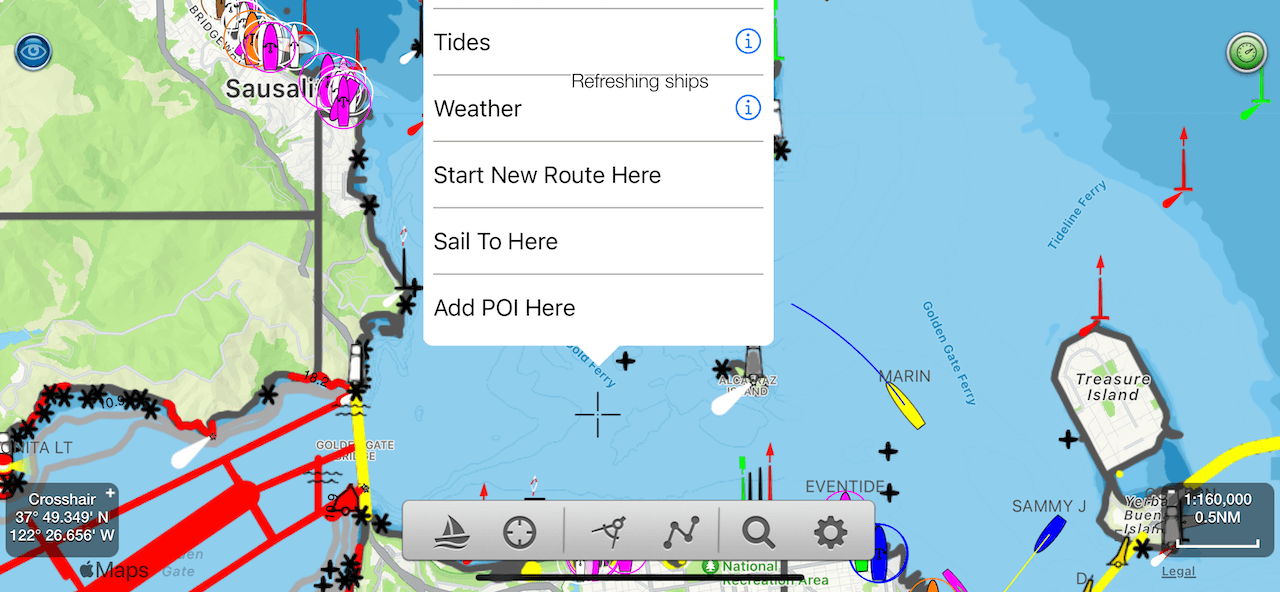
A long press will reveal a crosshair and a popup with depths, links to information about tides, moon and sun times and weather for the area plus links to any objects that are near the crosshair. Tapping again leaves the crosshair showing so you can drag the map to get a particular point under the crosshair and tap again to get information about it.
N.B. Tide and Weather information requires an internet connection. You can download up to a years Tide information for any area as iCalendar events to store for offline use in your iPhone calendar.
Simulation Mode lets you experience SeaNav's navigation features at home. Select User Guide and FAQ in settings and then slide the Demo Mode setting switch to ON (right) to position you at sea ready to navigate our demo route and try out the features below. You can also read these instructions on a web page using the following link Demo Guide. Its may be helpful to read this page on your laptop or other device at the same time as running this demo on your iPad or iPhone.
N.B. Slide the Demo Mode switch back to OFF to return to normal use. Sliding it OFF and then ON again will re-position the demo route at the beginning again.
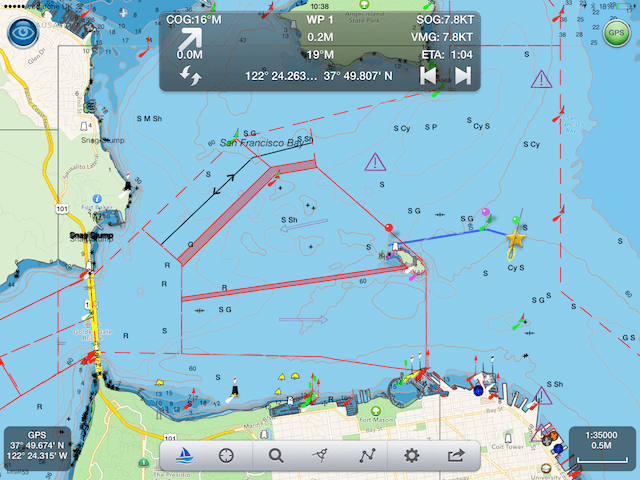
Tap this to start navigating the currently visible route or free sail without a route set. When on (white boat icon), your position will show on the maps as a boat icon with heading and speed vectors. Next waypoint, Course over ground (COG), Speed over ground (SOG), Vector Made Good (VMG), Estimated Time of Arrival (ETA), Distance and bearing to next Waypoint and current Latitude and Longitude will be displayed and updated in the head up display. An audible alarm will sound as you reach a waypoint and routing automatically moves onto the next waypoint. On reaching your final waypoint a summary of the trip details is shown with distance covered, time taken etc. Route tracking and waypoint monitoring will continue to run in the background when the app is closed. You can interrupt and resume a route exactly where you left off at any time by toggling the Sailboat icon.
N.B. If you have Boat Beacon - AIS Marine Navigation you will be invited to set Collision detection and trip details when you start navigating.
N.B.B. GPS uses a lot of battery. SeaNav will run for up to 5 hours in navigating mode on a full charge. If running on battery only, battery status reminders will be sent when the battery gets low.
Toggle between centring on your current position or showing the compass display. Tap once to lock the center of the map to your current location - dragging the map in this mode turns it off too (but not when compass is showing). Tapping the button again will show a compass rose, and pressing again will clear the location lock. See Compass mode in Settings for selecting Bearing, Course up or North up compass display.
Search for a port or place by name or latitude and longitude. Tapping a result jumps you to its position on the map and highlights it. Latitude and longitude can be entered in the following formats :- or DD MM.MMMM N,DDD MM.MMMM W (e.g. 37 48.915 N, 122 23.044 W) or DD MM.MMMM,DDD MM.MMMM or DD.DDDDD,DDD.DDDDD with latitude first and longitude second separated by a comma. West and South can be entered as negative numbers e.g. 51.2345,-2.12345 for 2.12345 degrees West. Tapping search will jump to the lat and long if they are in a valid format.
Create, edit and manage routes for navigation, view and manage recorded tracks from previous trips, and add favourite places (POIs). You can share routes, tracks and POIs with friends and other devices via email or Dropbox.
Routes are built from a series of waypoints. Tap and hold on the chart to place waypoints. In Route Edit mode, long-press a waypoint to drag it to a new position, or tap it to delete it. You can edit the route name and tap the reverse button to reverse the direction. Tap Done when finished editing. See also: how to create and edit a route.
Tap the sailboat icon to start navigating the selected route. SeaNav automatically selects the nearest waypoint as the starting point. Use the Sailing HUD back and forward arrows (top left of screen) to manually step to the next or previous waypoint. Routes cannot be edited while active — tap the sailboat icon to pause, edit, then tap again to resume exactly where you left off.
Tap the share button in the route details view to email your route as a GPX or KMZ file. This can be viewed in Google Earth and other copies of SeaNav. If you receive a GPX or KMZ file by email, tap it to open it directly in SeaNav. The GPX format also lets you share routes with other apps and onboard MFDs like Raymarine and B&G/SIMRAD/Lowrance. See also: exporting and importing routes via email and setting up club race courses.
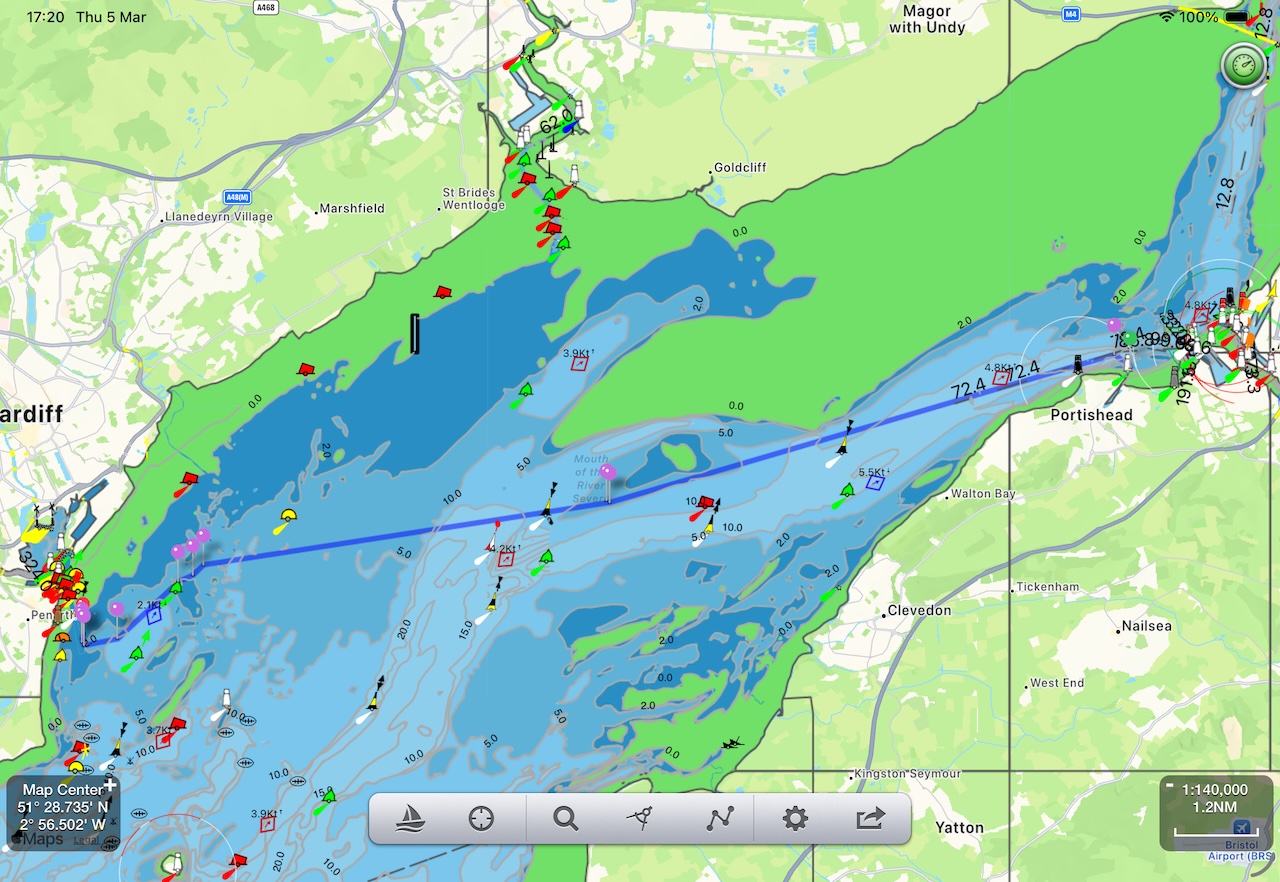
Sometimes autoroute can fail to find a route due to shallow depths, obstacles, narrow passages or even make a crazy route. Humans are still better than machines -
thankfully. Moving the endpoints into deeper water, breaking the route down into shorter sections or moving the end points nearer together and
re-tapping autoroute can solve this in most cases. Bridge narrows, lock entrances, and very tight tidal gates are places where chart data
precision and autoroute resolution conflict. The right approach is to place a manual waypoint at the exact gate/gap. autoroute then handles
each open-water segment on either side.
Autoroute will ask for any missing charts for a route if you haven’t already downloaded them. This is a good way of making sure you have all the charts
you need for offline use for a passage.
Please note:
See also: SeaNav AutoRoute guide.
Add markers for places you want to remember or share with friends and add a photo too. There are several types available. See also: importing POIs in bulk using the CSV to KMZ converter.
Make a long press anywhere on the chart to see the "Add a POI" option". You can drag the marker and also tap the i button in the label at the bottom of the screen to edit the POI's name and type and add a photo to it. You can manage POIs via the Routes button at the bottom of the screen. POI management lets you add, edit and also share POIs. POIs can be shared in the kmz file format including the photo with other SeaNav users via email or dropbox and also to view in apps such as Google Earth.
Use the ruler to measure distances and bearings between points on the map. Drag and drop the green and red pins to select the end points.
The Instrument Panel icon at the top right of the chart view shows green when there is a good GPS signal and red when no GPS. Tap the icon to view the navigation instruments cluster showing Nav (SOG,COG,HDG,Depth,Lat/Long), Waypoints and Wind. On the iPad in landscape mode the Instrument panel can be displayed at the same time as the live chart view.
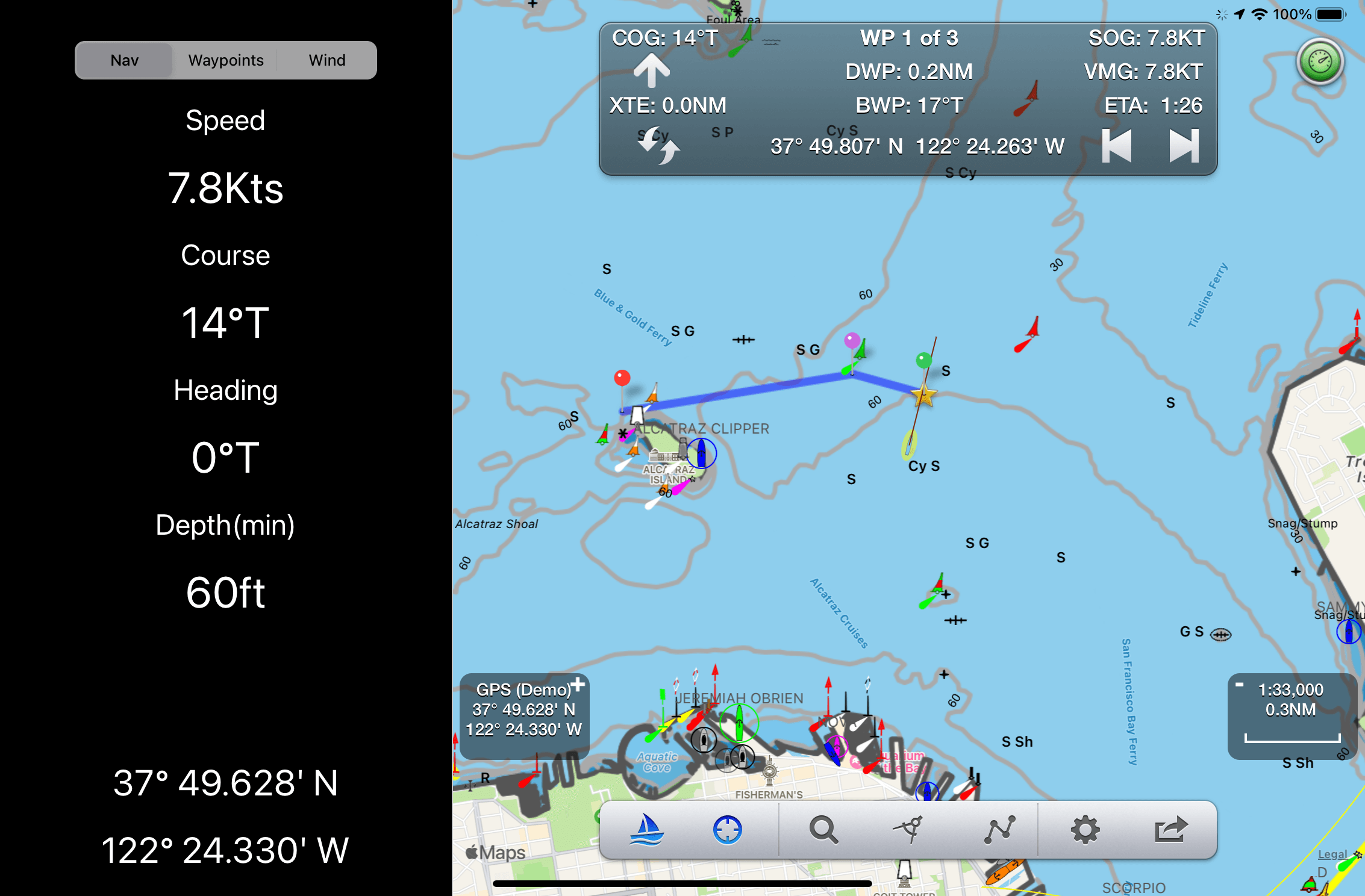
On iPhone the instruments show on separate views.
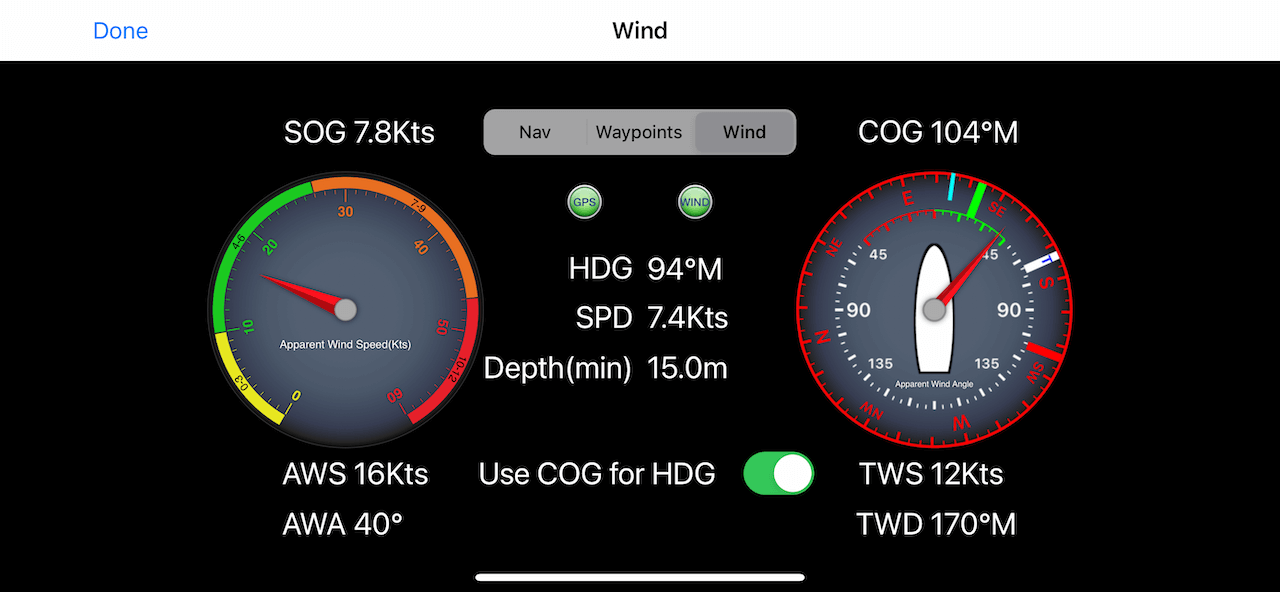
The Wind Speed gauge on the left shows Apparent Wind Speed (AWS) in Knots and the outer dial shows Beaufort scale color coded with green being great sailing conditions and red being heave to and batten down the hatches.
The Wind direction gauge on the right is a sophisticated display with a lot of information. It is well worth taking your time to understand it especially if you are Sailing.
The right hand gauge shows the apparent wind angle (AWA with the big Red needle against the inner white dial and apparent wind direction against the outer compass ring. Boat heading is shown against the red compass assuming the iPhone/iPad is pointing towards the bow.
The laylines are the closest direction you can sail on port (red) or starboard (green) tack to the wind. If you are sailing a route the direction to the next waypoint (BWP) is also displayed in light blue.
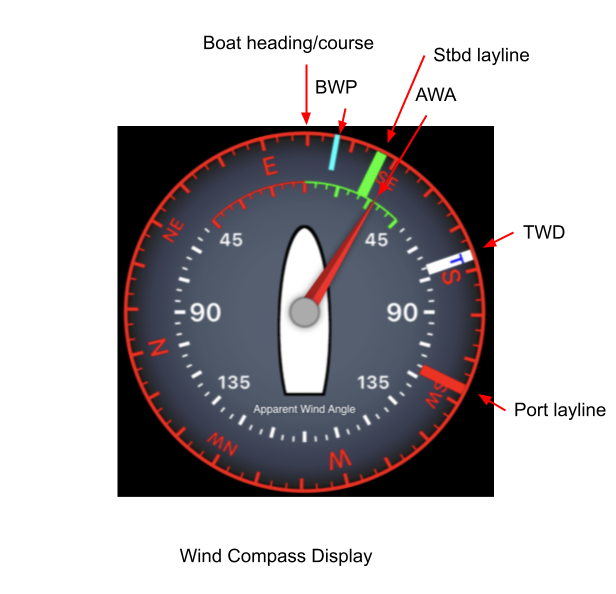
N.B. If you want to use your device as the true heading input make sure your iPhone/iPad is fixed pointing in line with the the bow/stern to get the correct readings.
SeaNav supports Wind data from the SeaNav internet real time weather service (IAP required), NMEA over WiFi from instruments on board (see AIS and GPS Link in settings), Simrad/Lowrance GoFree or via Bluetooth with the SailTimer Wind instrument. Depth can be from the current chart data for your position or via NMEA.
See also: SeaNav on the Apple Watch.
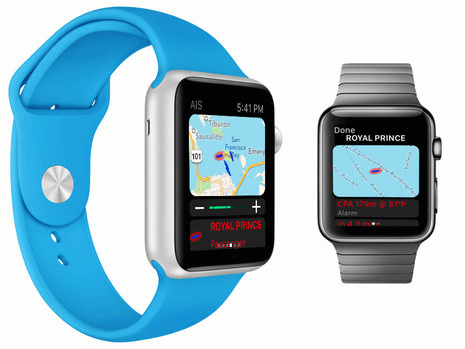
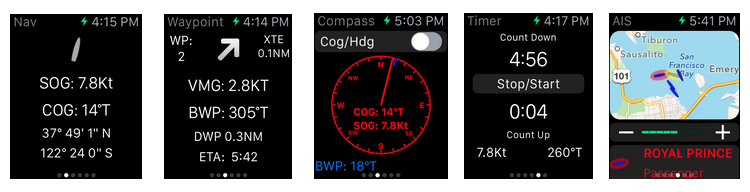
SeaNav includes our free Apple Watch SeaNav app
which provides live navigation data
wherever you are on your boat. Check your Speed, Course, Waypoint
distance, bearing and time at the flick of your wrist. It also
includes a compass display, wind gauge, live AIS radar map, race countdown timer
and a night mode switch which also acts as a handy wrist torch. You can start sailing mode directly from your watch by tapping the gray sailboat icon
with the red cross on the sail on the main Nav screen  . This will start sailing your pre-selected route or free sailing.
Add live AIS ship positions to the charts with details including photos and collision warnings, plus an Augmented Reality (AR) view with buoys, ships, course and route overlaid on the live camera view.
Ships are colour-coded by type: sailing boats are white, pleasure craft are magenta. See the Map Legend for full details. A vector arrow shows where each boat will be in 3 minutes based on its current speed and course. Ships move in real time across the chart. Tap a ship for more information; tap the right arrow for full details including photo, speed, course, CPA, distance and bearing. Ships flash if you are on a potential collision course. Positions refresh every minute and 3 seconds after any zoom or pan. You can extend vector length up to 1 hour in Advanced Settings. SeaNav supports AIS Aids to Navigation (AtoNs) and displays the corresponding marine symbol where known. Adjust CPA alert time and distance in My Boat Details, or set CPA time to 0 to disable collision warnings.
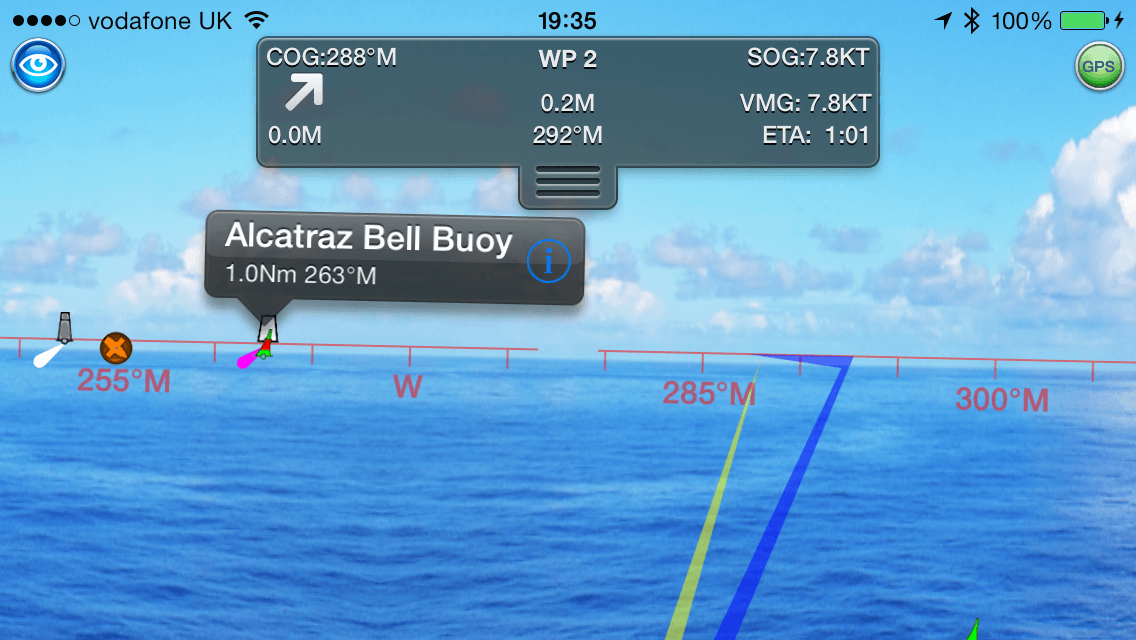
Tap the "eye" icon at the top left to switch AR mode on, then tilt your device up to see a live camera view of the scene with ships and buoys overlaid. As you turn, the name, range and bearing of each vessel or buoy appear when it enters the centre of view. Tilt back down to return to the chart. Tap the "eye" icon again to turn AR off. Your Favourite Places (POIs) also appear in AR view. AR mode works with the FLIR ONE Thermal Imaging Camera for iOS, allowing you to spot ships and people at night and in fog.
The "AR Lock On" feature lets you select a ship or buoy on the chart and then locate it in the camera view using a grey arrow that shows which way to turn. Your course (yellow line) and route to next waypoint (blue line) are also overlaid on the camera view.
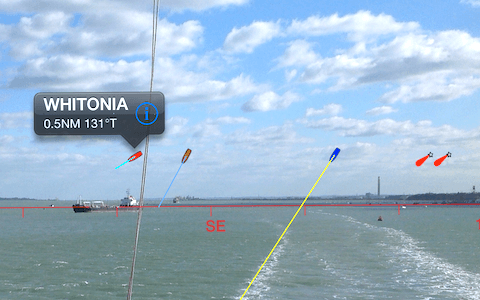
Ships are color coded based on their type e.g. Sailing boats are white, Pleasure Craft magenta, etc. See the Map Legend for full details. A vector points forward showing where each boat will be in 2 minutes time based on its current Speed and Course. Ships move in real time across the map and in the AR view. Tap on a ship or buoy to get more information and tap on the right arrow to get even more including speed, course, distance, bearing, picture etc. The horizon is set by the zoom scale of the chart view - e.g. zoom out on the chart view to see further out in the Augmented reality view.
AR photo from the Isle of Wight ferry.
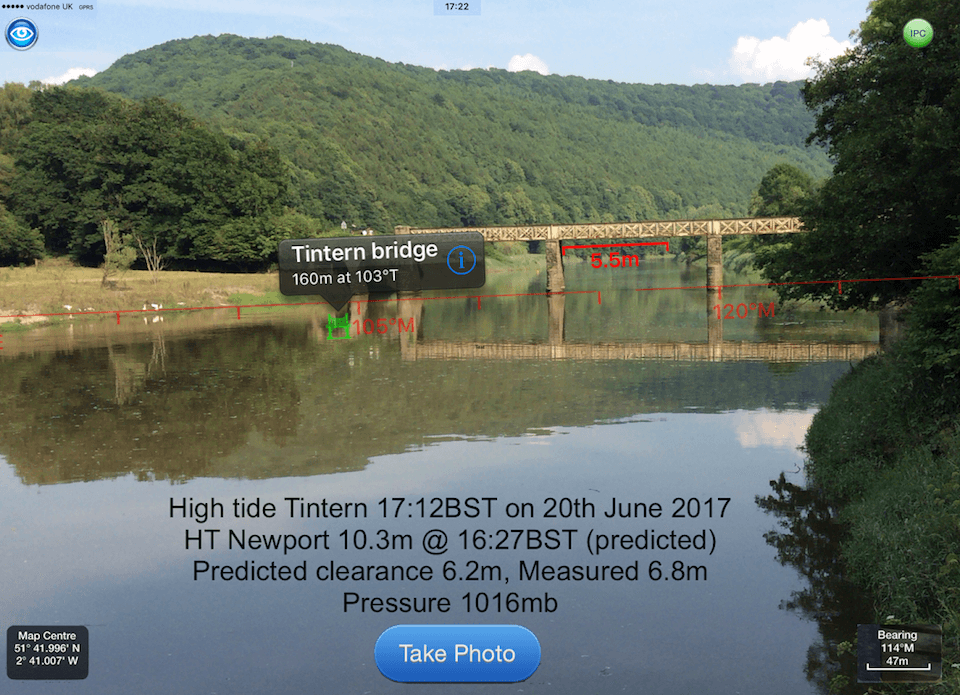
You can check if your boat will fit under a bridge or cable you are approaching. Set your boat’s Air Draught in "Settings/My Boat Details" add a Bridge POI on the map display where the bridge or cable crossing is. With the Bridge POI selected a red line will be drawn at the centre of the AR display at your boat's air draught height at the POI location. Top tip: To make sure your boat's height is set correctly set a bridge POI at your boat's location, move 100m or so away from your boat and view it in the AR view and check it lines up. Adjust the Air Draught setting in Settings/My Boat Details accordingly. The photo below shows my boat’s air draught of 5.5m (with the mast lowered) compared with the local bridge at Tintern at High Tide, we can just get under on a 10.3m HT!
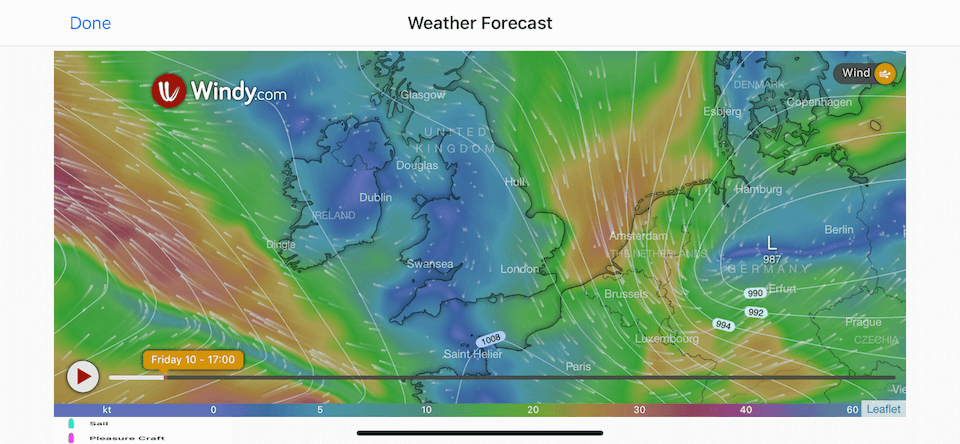
Weather forecast maps (IAP required) show detailed, interactive and animated live and forecast weather for the next 10 days for
Wind, temperature, pressure , wave heights and tidal currents to 7NM resolution.
The Weather IAP also provides live local wind direction and speed for the SeaNav
wind instrument displays.
Where available a Tidal diamond symbol is rotated to point in the flow direction. Blue means the rate is decreasing, red and it's increasing. The diamonds update in real time on the chart. For planning tap on a tidal diamond to see the rate and direction, tap i for more information and see the rate and direction for the next 3 days on a graph at the bottom of the screen. Slide the time cursor ( or just tap at the time you want ) and all the tidal diamonds in view on the chart update as you adjust it (not just the one you have selected). You can zoom in and out of the graph timeline using pinch gestures. The Tidal Stream information is cached for up to 7 days so will work when you are out of internet coverage as well. See Tidal Streams for more information.
Tap the lifebuoy icon to mark your current position on the map and SeaNav will provide a continuous bearing,
distance and time from the point as you move away from it. The sailboat icon changes to a lifebouy to show that MOB is active. Tap it to turn MOB off. SeaNav will be left in sailing mode.
Tap the Sailboat icon again to turn this off.
MOB can also be used to set a temporary point of interest or mark a place.
Anchor Watch monitors your boat's position and raises an alarm if you drag anchor. Drop your anchor and tap the anchor symbol to set a guard circle around your anchor position.
An alarm sounds on your device or Apple Watch if your boat moves further than a set distance (see Anchor guard radius in Boat Details) or faster than 1 knot. If you have an email address set in Boat Details, SeaNav also sends an email with a map showing the anchor and current boat positions — useful when you are below decks or away from the boat. The alarm repeats every 5 minutes until cleared or the boat returns to the anchor circle. MOB and Anchor Watch continue to work in the background when the screen is off.
Important: if you use "Do Not Disturb" or Focus on your device, add SeaNav as an excluded app so you receive anchor and collision alerts during those periods.
For more accurate anchor position tracking, enable Anchor Offset in "My Boat Details". SeaNav then estimates the true anchor position relative to your current position — set Anchor Watch on when your boat has drifted back to its maximum distance from the anchor and is pointing towards it.
Anchor Watch can also be used as a theft alarm. Set an email address in My Boat Details and SeaNav will send an alert with a map of your boat's current position if it moves.
You can try the MOB and AnchorWatch features for free in SeaNav's Demo mode. MOB and Anchor Watch can be added using a single one time In App Purchase.
Browse,Select, Share, reverse, rename waypoints and delete routes
You can choose what information to show on the map; Buoys, Lights, Depth contours, Depth soundings, Wrecks, Rocks, Anchorage areas, NOAA Weather Buoys, Traffic Separation zones etc. Turn off layers to de-clutter the display and only show what is important at the time. You can set the maximum depth to display details at in Advanced Settings - Max Display Depth :- 20m, 50m or All.
If you have Boat Beacon you can also view live AIS ship information on the map. Ships are color coded based on their type e.g. Sailing boats are white, Pleasure Craft magenta. See the Map Legend for full details. A vector points forward showing where each boat will be in 2 minutes time based on its current Speed and Course. Ships move in real time across the map. Tap on a ship to get more information. Collision detection, alarms and location sharing are set and handled in Boat Beacon.
N.B. To see individual Depth soundings you need to zoom in to 1:20,000 or better.
Charts are automatically downloaded and stored as you pan and browse the map view. You can use "Manage charts" to view which charts cover which areas, which charts have been installed and manually select new charts to download including all charts for the current view (up to 60 at a time). You can store the charts for the whole of the UK or several US States. They can then be used even when you have no mobile coverage.
Already downloaded and installed charts are outlined in green. A solid outline shows the currently selected chart. Red outlines are charts that haven't been downloaded. Tap a chart area to select it.
When you buy the app with a chart set included - e.g. SeaNav US or SeaNav UK and Ireland, it includes free chart updates for the first year. To continue receiving regular updates in subsequent years you can purchase a yearly subscription via our In App Shop. If your subscription for a vector (ENC) chart set expires you can still use and even download new charts for all the charts covered by your old subscription period. However, they will not include any updates after your subscription period ended.
Raster (RNC) charts are available with a 1 year renewable subscription which includes updates. To continue using raster charts and receiving regular updates in subsequent years you will need to renew your subscription.
The cog wheel icon at the bottom left opens a list of all the chart sets that you have, their subscription expiry dates, subsciption re-newal opportunities and Chart Sets for other areas and countries that are available via In App Purchase.
Select map, satellite or hybrid map overlays. By default, Depth overlays are not shown in satellite mode to allow satellite image details to be seen. Depth contours are still displayed. You can manually turn the Depth overlays back on when in Satellite mode. Depth Overlays are automatically defaulted to show when back in Normal mode.
Connect to local NMEA instruments via Wifi or internet NMEA feeds to use local AIS, Depth, Wind and GPS information with SeaNav. Set the Port number, protocol type (UDP or TCP) and the network address to connect to. If you are transmitting your AIS position with a VHF AIS Transponder then set My MMSI number here so that SeaNav does not show two positions for your boat and continually give collision alerts.
Set the name of your Boat, its type ( for display on the chart), its MMSI number ( to ignore VHF AIS signals from it), Air Draught and Collision (CPA) alert time and distance parameters. Set TCPA (time to CPA) to 0 to disable collision warnings (e.g. when you are in a busy port or harbour).
When the compass is on the map display will rotate with either your bearing (magnetic or true north direction), your course or be locked to showing North up. Course up means the map will orient in line with your boats course over ground.
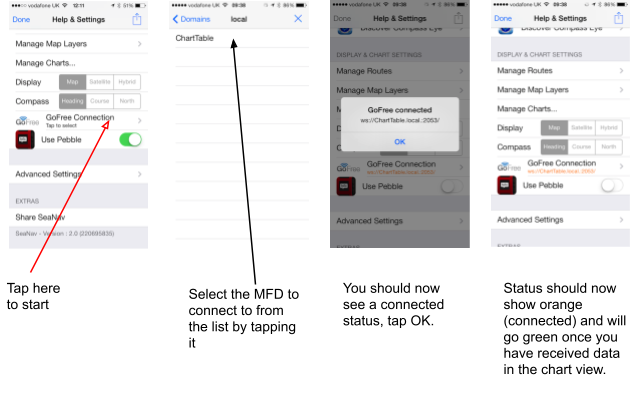
SeaNav automatically connects to your Simrad NSS, Lowrance HDS or B&G Zeus via WiFi GoFree and displays Waypoint, Course, Layline, Buoys and Ship AIS data over your iPhone iPad live camera view.
The first time you use GoFree you will need to select the MFD you are connecting to, after that SeaNav will connect automatically if it can see it on the network. To make the initial connection go into settings, tap on GoFree (see screenshots below) and you should then see a list (usually just one entry) of the MFD’s SeaNav has found on the network. Select the one you want by tapping on it. You should now see a connected message and the name of the MFD connection highlighted in orange in the Settings screen meaning it has successfully connected. Pop out to the Chart view and go back into settings and it will now be green if it has received data from the MFD.
If you want to stop using GoFree then tap the GoFree setting in Settings and then tap the X at the top right of the list of devices.
We're always happy to hear your ideas on how we should improve our products - please send an email to seanav@pocketmariner.com.
We also have FAQ in the app and here that may answer some of your questions:-
We sure are - follow @seanavapp to get our latest news.
Pocket Mariner have other great apps for iPhone and Android- if you're a fan of SeaNav you are sure to enjoy apps like Boat Beacon which provides real time Marine AIS ship position receive and transmit and Compass Eye the first fully Gimballed iPhone Bearing compass with zoom and overlaid gps information.
And finally, you may like to know that Pocket Mariner can develop mobile applications for your company - if you have a project you'd like to discuss, please email us at business@pocketmariner.com
NOTICE: The UK Hydrographic Office (UKHO) and its licensors make no warranties or representations, express or implied, with respect to this product. The UKHO and its licensors have not verified the information within this product or quality assured it.
NOTICE: US marine charts are derived from the official NOAA ENC vector chart data.
NOTICE: Canadian charts have been produced based on Canadian Hydrographic Service (“CHS”) data, following any minimum standards/guidelines that may have been established by CHS, pursuant to CHS Digital Value-Added Reseller Agreement No. 2024-0305-1260-EP. This product does not meet the requirements of the Navigation Safety Regulations, 2020 under the Canada Shipping Act, 2001. Charts and publications issued by or on the authority of CHS must be used to meet the requirements of those regulations. CHS does not endorse any derived product..
SeaNav has been licensed to you under the Apple End User License Agreement (EULA)
support@pocketmariner.com. Any questions. We'll do our best to get back to you quickly!
NOT FOR NAVIGATION
Please note this program is distributed in the hope that it will be useful, but with NO WARRANTY. It is for basic navigational assistance only and is not intended to be relied upon in situations where precise location information is needed or where erroneous, inaccurate or incomplete location data may lead to death, personal injury, property or environmental damage. Neither the Application Provider, nor any of its content providers, guarantees the availability, accuracy, completeness, reliability, or timeliness of information or location data displayed by any Services.
The accuracy of digital compass headings can be affected by magnetic or other environmental interference, including interference caused by proximity to the magnets contained in the iPhone earbuds. The compass may need to be calibrated from time to time. When the device displays the calibration alert, move the device in a figure 8 motion until the calibration screen disappears. See Apple support for more information.